Shopify just opened checkout to AI agents
On 28 September 2026, Shopify announced that browser-based AI shopping agents can now complete purchases on Shopify stores — inspect a checkout, fill in the buyer’s details, and place the order, all through a set of agent tools rather than a human clicking around your storefront.
It’s a genuinely big shift. And if you password-protect or gate any of your products, it raises an uncomfortable question: can an AI agent just walk past your lock?
Why this breaks “hide the buy button”
Almost every “lock,” “hide,” or “members-only” app works the same way: it hides a button or a price in the shopper’s browser, with a bit of JavaScript. That’s fine for a casual human. It does nothing for anything automated.
An AI agent — like a bot — never loads your buttons. It talks to checkout directly, through structured tools. There’s no button to hide, no page to gate. So a gating app that only works in the browser protects you against exactly the audience least likely to respect it: bots, scripts, leaked links, and now AI agents.
The button is a courtesy for humans. The checkout is the lock. Agents skip the first. The question is whether anything stops them at the second.
So we tested it — against Shopify’s actual agent checkout
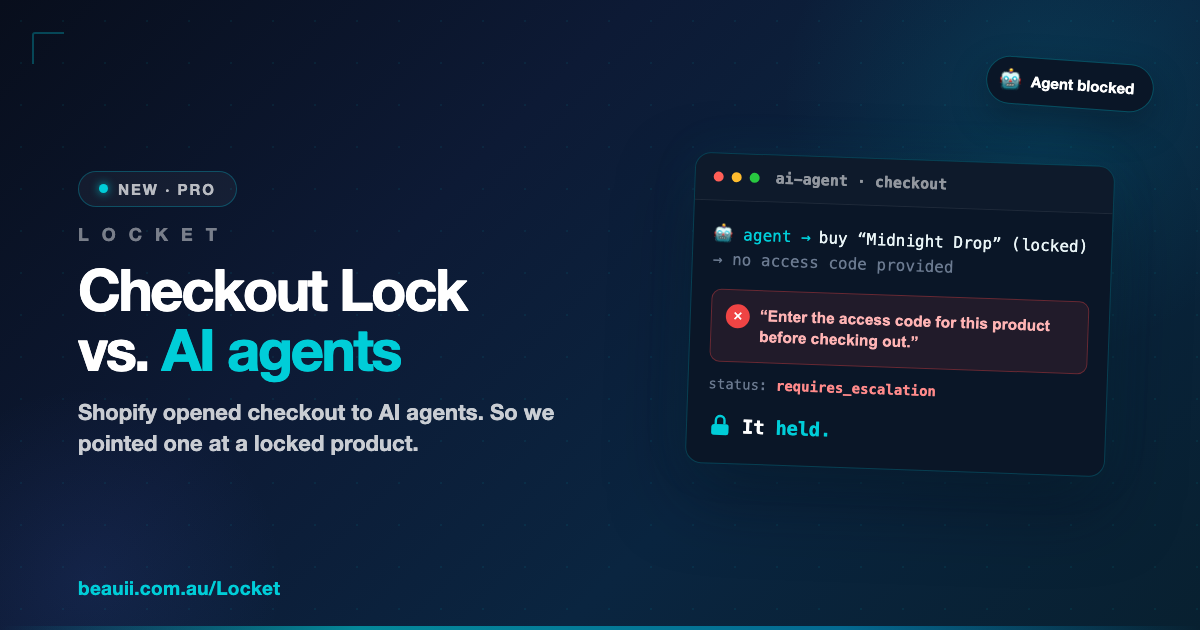
We didn’t want to guess. We pointed Shopify’s brand-new AI-agent checkout at a real store running Locket’s Checkout Lock, and tried to buy a locked product the way an agent would — no password, straight to checkout.
Here’s what the agent got back, verbatim:
“Enter the access code for this product before checking out.”
status: requires_escalation
The agent was blocked. It couldn’t complete the order. Checkout was pushed to a state the agent can’t finish on its own — it would have to hand the buyer back to the normal checkout page, where the very same lock applies.
As a control, we ran an unlocked product through the exact same agent checkout. No access-code prompt, no block — it moved straight along. So the lock isn’t blanket friction; it fires only on the products you’ve actually protected, agent or not.
Why Checkout Lock holds where others don’t
Checkout Lock enforces your password at Shopify’s checkout itself — server-side, not in the shopper’s browser. It’s the same validation layer an AI agent’s checkout runs through. So:
- A shopper (or agent) who hasn’t entered the password doesn’t hold a valid, cryptographically signed access code — one that can’t be faked, copied onto another product, or reused by a bot.
- At checkout, Shopify checks for that code. No valid code on a locked product → the order is stopped. Human, bot, or AI agent — it makes no difference.
Your customers’ experience doesn’t change: they enter the password and buy, exactly as before. What changes is that the people and programs who shouldn’t get through, now don’t.
Who this matters for
- Limited drops & pre-orders — if it sells out in seconds, bots and agents are already trying.
- Trading cards & collectibles — high-demand presales where a few scripts can clear your whole allocation.
- Wholesale & B2B — keep trade ordering to approved accounts, not the open internet.
- VIP & members-only — reward the people who earned access, and keep it that way.
The part everyone assumes needs Shopify Plus
Enforcing rules at Shopify’s checkout has traditionally been a Plus-only capability. Checkout Lock works on any Shopify plan — Basic and Grow included. No Plus, no developer, no theme edits. Install Locket, flip one switch, and it’s on.
Turn it on
Checkout Lock is a Locket Pro feature, and it’s opt-in — it only ever applies to stores that switch it on. To enable it: open Locket in your Shopify admin → Settings → Checkout Lock → Enable. Locket sets everything up automatically; there’s no checkout code to write.
The world’s quietly getting more automated — more bots, more scripts, and now AI agents checking out on your behalf. If your locked products are worth protecting, protect them where it actually counts.
Ready to switch it on? Open Locket → Settings → Checkout Lock, or learn more about Locket. Not using Locket yet? Find it on the Shopify App Store and lock your first product in a couple of minutes.
Leave a Reply